Add New Bank Account: Difference between revisions
Jump to navigation
Jump to search
No edit summary |
No edit summary |
||
| Line 10: | Line 10: | ||
# ''Statement Frequency:'' Choose how often you receive a bank statement for this account. Your selection will be used to remind you when to reconcile. |
# ''Statement Frequency:'' Choose how often you receive a bank statement for this account. Your selection will be used to remind you when to reconcile. |
||
After adding a new bank account, go to Maintenance |
After adding a new bank account, go to Maintenance / Properties / Accounts tab, and check that your [[Properties Quick Start#Banking Information|Default Accounts]] are set properly. |
||
[[File:Check_picture.png|center|600px]] |
[[File:Check_picture.png|center|600px]] |
||
Latest revision as of 02:32, 31 December 2025
- Go to Maintenance / Edit Accounts, and click "Add New Account".
- ID: Bank account ID numbers should be numbered near the existing numbers, in the low 8000's.
- Name: Type the name of your bank account, including whether it is a checking or savings account. For example: “First Union Checking.” This is for your use when entering transactions, so use something that easily identifies the account and differentiates it from your other accounts.
- Memo: Use the Memo give any further information about the purpose or history of the account.
- Bank Name: Type the exact name of your bank. This is the name that will print out on the checks and must be your legal bank name.
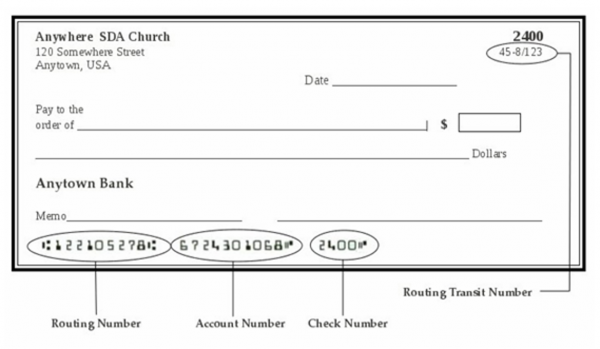
- Routing #: This is "routing transit number" or "fractional bank number" that is sometimes printed in small print on the upper right corner of checks, as a backup to the routing number at the bottom. If your bank still uses this number, enter it here. Otherwise, you may leave it blank.
- Address: Type in your bank's mailing address, using the same number of lines as a normal address label.
- Check MICR Line: This line consists of your account number, routing number, and check number and can be seen on the bottom of your checks in bold black type along with some unusual symbols. Key in the number and symbols (use the guidelines provided to type the symbols) exactly as is seen on your checks, with the exception of the last 4 digits – type “nnnn” instead of the numbers seen on the check.
- Deposit Slip MICR Line: If you plan to print deposit slips from Jewel to take to your bank, copy the MICR line from a pre-printed deposit slip, or ask your bank for the numbers and symbols to enter.
- Statement Frequency: Choose how often you receive a bank statement for this account. Your selection will be used to remind you when to reconcile.
After adding a new bank account, go to Maintenance / Properties / Accounts tab, and check that your Default Accounts are set properly.
