AdventistGiving Manual Entry Instructions: Difference between revisions
Jump to navigation
Jump to search
No edit summary |
No edit summary |
||
| (6 intermediate revisions by the same user not shown) | |||
| Line 16: | Line 16: | ||
[[File:AG_Manual_Entry_0.5.png|center|600px]] |
[[File:AG_Manual_Entry_0.5.png|center|600px]] |
||
'''NOTE:''' If there is anything in the “Reversed” column, use [[AdventistGiving Returned Offerings|this tutorial]] to make a correct deposit entry. |
:'''''NOTE:''' If there is anything in the “Reversed” column, use [[AdventistGiving Returned Offerings|this tutorial]] to make a correct deposit entry.'' |
||
#<li value=9> Enter each individual donation “envelope” which will be divided by dotted lines in the Adventist Giving report. (A fictional name and address have been used in the following envelope to protect privacy.) |
#<li value=9> Enter each individual donation “envelope” which will be divided by dotted lines in the Adventist Giving report. (A fictional name and address have been used in the following envelope to protect privacy.) |
||
| Line 24: | Line 24: | ||
[[File:AG_Manual_Entry_2.png|center|600px]] |
[[File:AG_Manual_Entry_2.png|center|600px]] |
||
:: Do the same with each envelope, one by one, until you have entered them all. If you have any questions about Jewel offering envelope entry, [[Receiving and Handling Offerings#Contribution Entry|click here]]. |
:: Do the same with each envelope, one by one, until you have entered them all. If you have any questions about Jewel offering envelope entry, [[Receiving and Handling Sabbath Offerings#Contribution Entry|click here]]. |
||
:: If a donor gives more than once on the same report, create a separate Jewel “envelope” for each donation. |
:: If a donor gives more than once on the same report, create a separate Jewel “envelope” for each donation. |
||
#<li value=10> Once all the envelopes are correctly entered, Jewel will prompt you to Make Deposit. Click on “Yes.” |
#<li value=10> Once all the envelopes are correctly entered, Jewel will prompt you to Make Deposit. Click on “Yes.” |
||
# On the “Make Deposit” page, edit the Memo to say “Adventist Giving for xx/xx/xx (the Cut-off Date of the report you are entering.) [[ |
# On the “Make Deposit” page, edit the Memo to say “Adventist Giving for xx/xx/xx (the Cut-off Date of the report you are entering.) [[Memo Writing Tips|Editing the memo]] will give greater clarity to the Deposit Reports. |
||
# Click the green “OK √” in the top right corner and you are done. |
# Click the green “OK √” in the top right corner and you are done. |
||
<br><br> |
|||
----- |
----- |
||
[[ |
[[AdventistGiving Offerings|Click here for more topics related to AdventistGiving Offerings]] |
||
The original version of this page was provided to Jewel by the Georgia-Cumberland Conference Audit Team. Created by Linda McCabe. |
|||
Latest revision as of 21:22, 24 January 2026
- This method is used to enter the offerings on the deposit report manually, one donor envelope at a time.
- This method is slower than either of the “Import” methods, but it works well if just one or two of your members are using Adventist Giving.
- This method may be preferred by treasurers who prefer a simple, more familiar method.
First, read AdventistGiving Information so you know which report you need to print. Then follow these steps.
- Log in to your AdventistGiving account.
- Click on “Treasurer Portal”. You will see the Deposits screen, with your list of Official Deposit Reports.
- Find the report you need to enter into Jewel, based on the Cut-Off Date.
- Click on Download for that report.
- Click on PDF.
- Print the report for your records.
- Open Jewel and click on “Start New Offering".
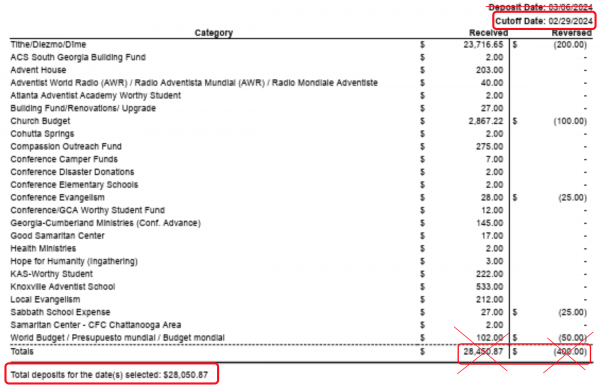
- Enter the Offering Date and Offering Total in Jewel. Find them in the top section of the report that you just printed. Use the Cutoff Date and the Total deposits for the date(s) selected Total as shown below. Then click on “OK √".

- NOTE: If there is anything in the “Reversed” column, use this tutorial to make a correct deposit entry.
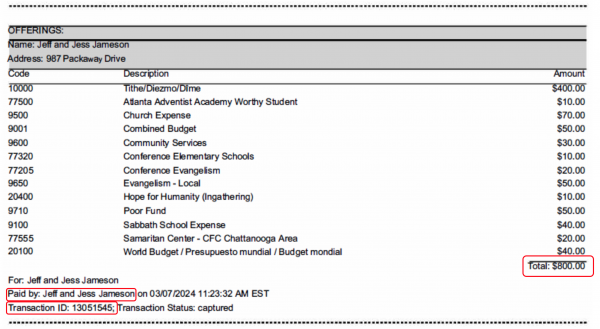
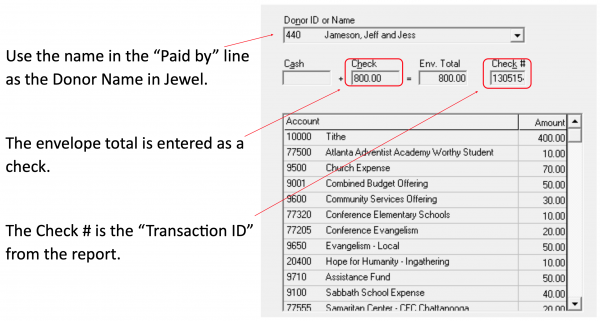
- Enter each individual donation “envelope” which will be divided by dotted lines in the Adventist Giving report. (A fictional name and address have been used in the following envelope to protect privacy.)


- Do the same with each envelope, one by one, until you have entered them all. If you have any questions about Jewel offering envelope entry, click here.
- If a donor gives more than once on the same report, create a separate Jewel “envelope” for each donation.
- Once all the envelopes are correctly entered, Jewel will prompt you to Make Deposit. Click on “Yes.”
- On the “Make Deposit” page, edit the Memo to say “Adventist Giving for xx/xx/xx (the Cut-off Date of the report you are entering.) Editing the memo will give greater clarity to the Deposit Reports.
- Click the green “OK √” in the top right corner and you are done.
Click here for more topics related to AdventistGiving Offerings
The original version of this page was provided to Jewel by the Georgia-Cumberland Conference Audit Team. Created by Linda McCabe.